

Google Shopping Ads Setup 2026 — A Complete Step-by-Step Guide

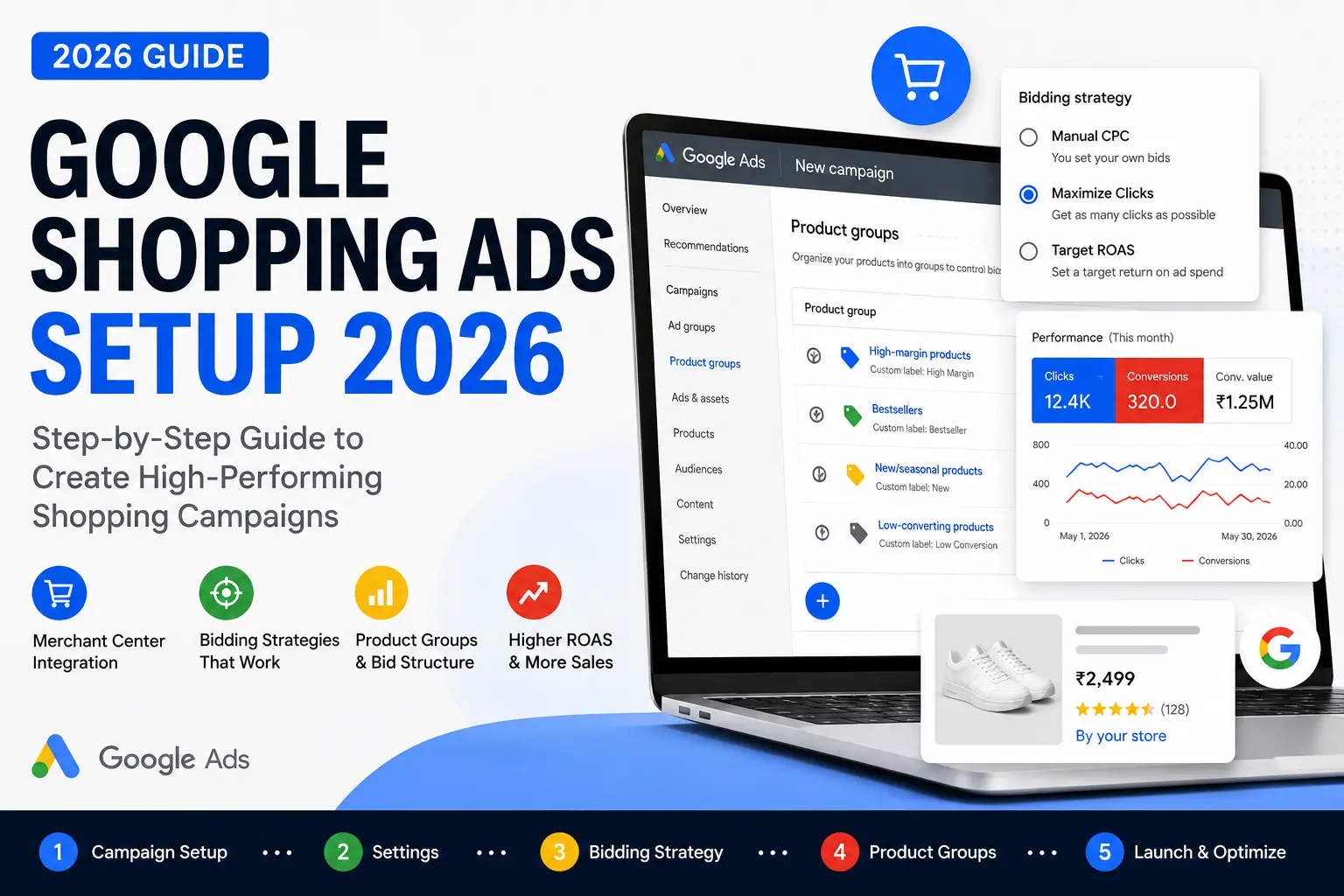
Quick Answer: To run Google Shopping Ads in 2026, you need a Google Merchant Center account with verified products, a linked Google Ads account, and a Shopping or Performance Max campaign. This guide walks you through everything -setup, bidding, filters, optimization, and what’s new in 2026.
If you sell physical products online and you’re not running Google Shopping Ads yet honestly, you’re leaving money on the table every single day.
I’ve been running and managing Google Ads campaigns for businesses of all sizes – small D2C brands, local retailers, and mid-sized e-commerce stores. And Shopping Ads, when set up correctly, consistently deliver some of the best Return on Ad Spend (ROAS) I’ve seen across any ad format.
In this guide, I’ll walk you through the complete Google Shopping Ads setup 2026 process, from linking your Merchant Center to launching your first campaign.
This complete Google Shopping Ads setup 2026 guide will walk you through every step — from Merchant Center to your first live campaign.
What Are Google Shopping Ads? (And Why They Work)
Before we get into the setup, let me quickly explain what Shopping Ads actually are.
When someone searches for something like “running shoes” on Google, those product cards that show up at the top with an image, price, and store name those are Google Shopping Ads.
They’re different from regular text ads because:
- They show a product image, which grabs attention immediately
- They display pricing upfront, so clicks are more qualified
- They pull data directly from your Google Merchant Center product feed
- They appear in the Google Shopping tab AND the main search results
The result? Higher click-through rates, better-qualified traffic, and often lower cost-per-conversion compared to standard search ads especially for e-commerce.
Now that you understand the basics, let’s dive into the Google Shopping Ads setup 2026 walkthrough.
What You Need Before You Start
Let me be very clear about the prerequisites. A lot of people skip this and then wonder why they can’t create the campaign. Here’s what you must have:
- A Google Ads account -obviously
- A Google Merchant Center account -this is where your product data lives
- Products uploaded and approved in Merchant Center -no products = no Shopping Ads
- Merchant Center linked to your Google Ads account -both accounts must be connected via the same Gmail/Google account or through an explicit linking request
If your Google Ads account doesn’t have access to any Merchant Center account, the platform simply won’t let you proceed with creating a Shopping campaign. It’ll block you right at the campaign setup stage.
Why Are My Google Shopping Ads Not Showing? (5 Quick Fixes)
- Product disapproved in Merchant Center
- Merchant Center not linked to Google Ads
- Bidding too low — not winning auctions
- Feed errors (missing GTIN, bad images)
- Billing issue in Google Ads account
Step 1 — Google Merchant Center Setup for Shopping Ads
Everything You Need for Google Shopping Ads Setup 2026
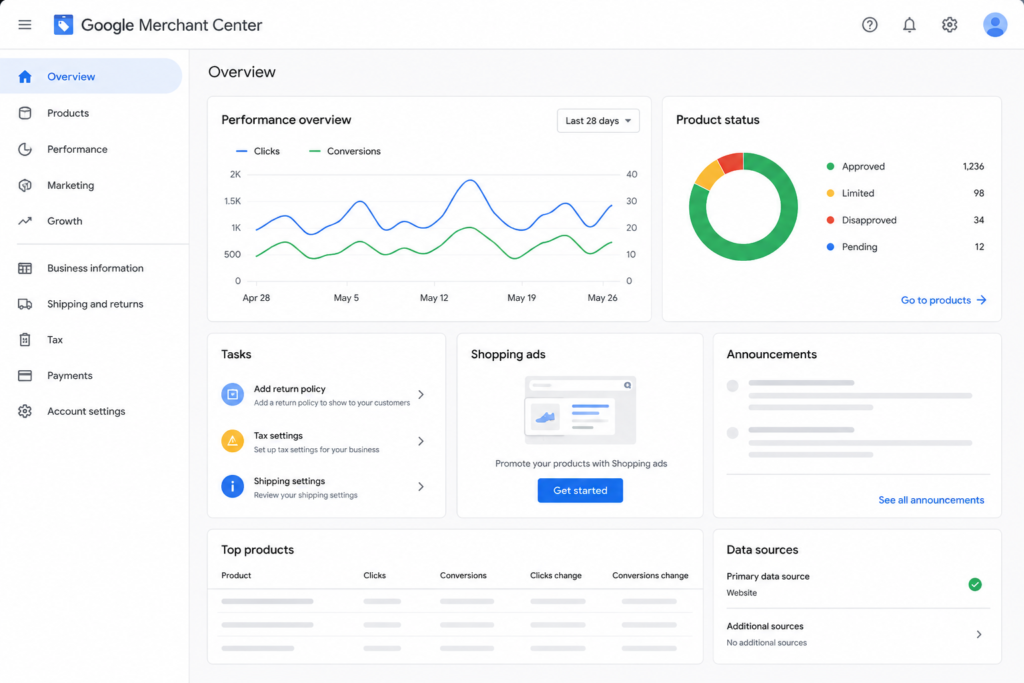
Google Merchant Center (GMC) is the foundation of everything in Shopping Ads. Think of it as the backend warehouse where all your product information lives. Google reads this data and uses it to match your products to relevant search queries.
If you’re completely new to Google Ads account organisation, read our guide on Google Ads Account Structure 2026 before setting up campaigns.
Here’s what your Merchant Center setup should include:
- Business information – name, website URL, country of sale
- Website verification & claiming -Google needs to confirm you own the website
- Shipping settings– delivery times, shipping costs, regions you ship to
- Tax settings– especially important if you sell in the US
- Product feed -either uploaded manually, via a spreadsheet, or auto-synced from your e-commerce platform (Shopify, WooCommerce, etc.)
2026 Update: Google has been pushing Merchant Center Next (MCN) as the default experience. If you’re starting fresh, you’ll likely land in the new interface. The core logic is the same, but the UI is cleaner and more automated product suggestions, automatic attribute extraction from your website, and better integration with Google’s AI-based campaigns.
Step 2 — Creating a New Shopping Campaign in Google Ads
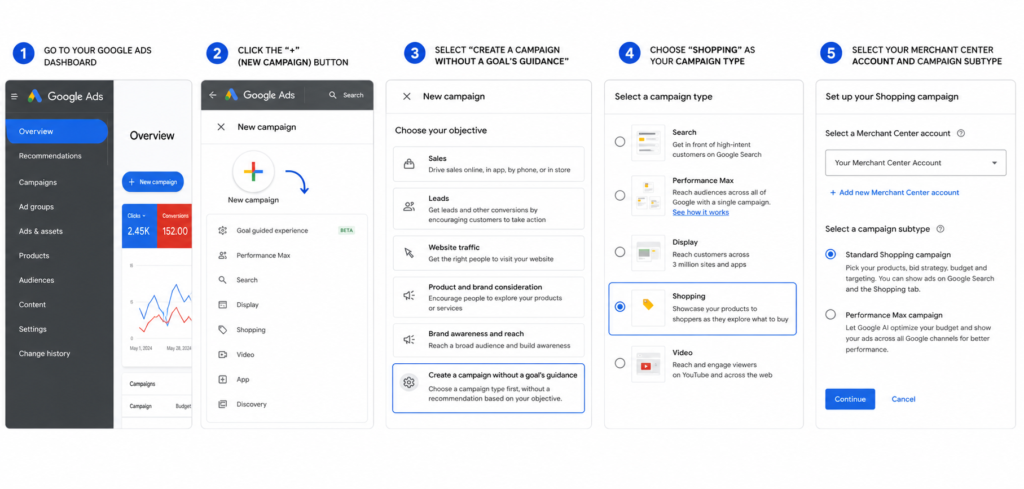
Once your Merchant Center is set up and linked, here’s how you create the actual campaign:
- Go to your Google Ads dashboard
- Click the “+” (New Campaign) button the big colorful one
- Select “Create a campaign without a goal’s guidance” this gives you full control over settings
- Choose “Shopping” as your campaign type
- Select your Merchant Center account from the dropdown
- Choose between Standard Shopping Campaign or Performance Max
Now this choice between Standard Shopping and Performance Max is important. Let me break it down for you.
Standard Shopping vs Performance Max 2026
This is probably the most common question I get, so let me answer it honestly.
Standard Shopping Campaign
- You control which products show, where, and at what bid
- Better for testing, tight budgets, and understanding what’s working
- More transparency you can see search terms, product-level data
- Ideal for beginners and small to mid-budget accounts
If you’re unsure when to use PMax, see our complete Google Performance Max Campaign Setup Guide.
Performance Max (PMax) Campaign
- Powered by Google’s AI and machine learning
- Runs across Search, Shopping, Display, YouTube, Gmail, and Maps all from one campaign
- Requires significant data and budget to learn and optimize
- Best suited for accounts with established conversion history and larger budgets
Here’s my honest take: Start with Standard Shopping. Get your product feed clean, understand which products convert, and build your data. Once you have 30–50 conversions per month, then test Performance Max.
PMax is powerful — but it needs fuel (data + budget) to actually perform. If you’re running a small budget campaign and you throw it into PMax right away, you’ll burn through spend in the learning phase without meaningful results.
Step 3 — Campaign Settings Explained
This is one of the most important parts of your Google Shopping Ads setup 2026 getting your campaign settings right.
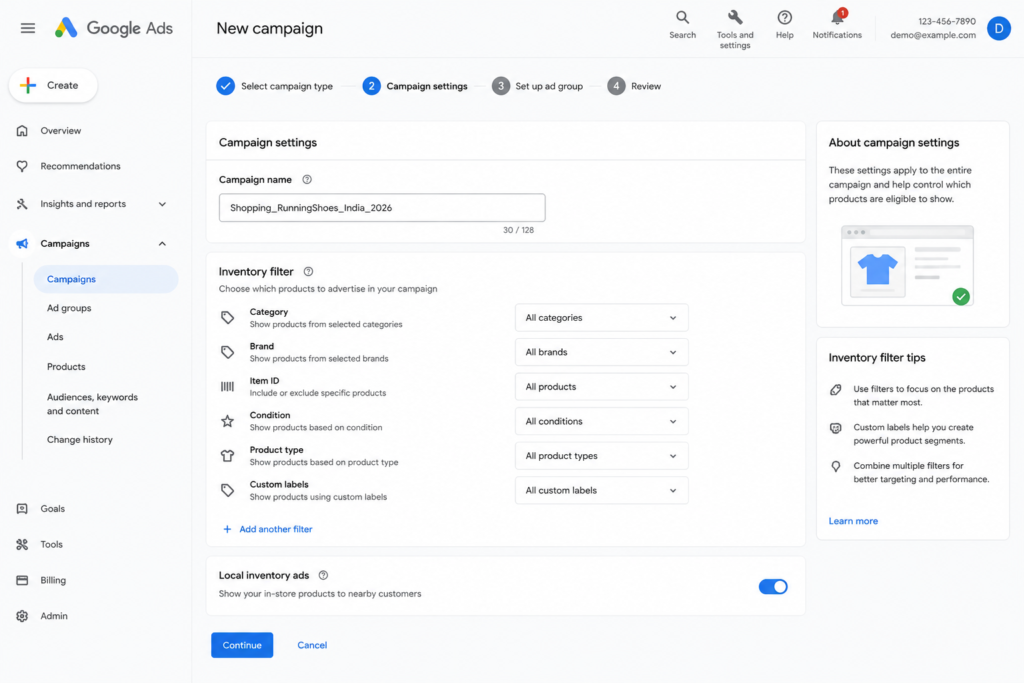
Once you’ve selected Standard Shopping and clicked Continue, here’s what you’ll configure:
Campaign Name
Keep it descriptive. Something like: Shopping_RunningShoes_India_2026 is far more useful than Shopping Campaign 1 when you’re managing multiple campaigns.
Inventory Filter — The Feature Most People Ignore
This is one of the most underutilised settings in Shopping campaigns, and it can make a big difference.
By default, your Shopping campaign will serve ads for every product in your Merchant Center account. If you have 200 products but you only want to advertise 20 of them use the Inventory Filter.
You can filter products by:
- Category– e.g., only run ads for products in the “Running Shoes” category
- Brand– e.g., only show ads for Adidas products
- Item ID-specify exact product IDs you want to include
- Condition– run ads only for new products, or only for used/refurbished
- Product Type– based on how you’ve categorised products in your feed
- Custom Labels– a powerful feature where you tag products in your feed (e.g., “high-margin”, “seasonal”, “bestseller”) and then filter by those tags
Custom Labels, in particular, are something I actively use for every client. They let you create completely custom segments like running a separate campaign with higher bids just for your top 10 revenue generating products.
Local Inventory Ads Toggle
If you have a physical store and your products are listed as local inventory in Merchant Center, you can toggle this on. It’ll show ads to nearby searchers indicating the product is available in-store. Great for retail businesses. If you’re purely online, leave it off.
Step 4 — Google Shopping Ads Bidding Strategy 2026
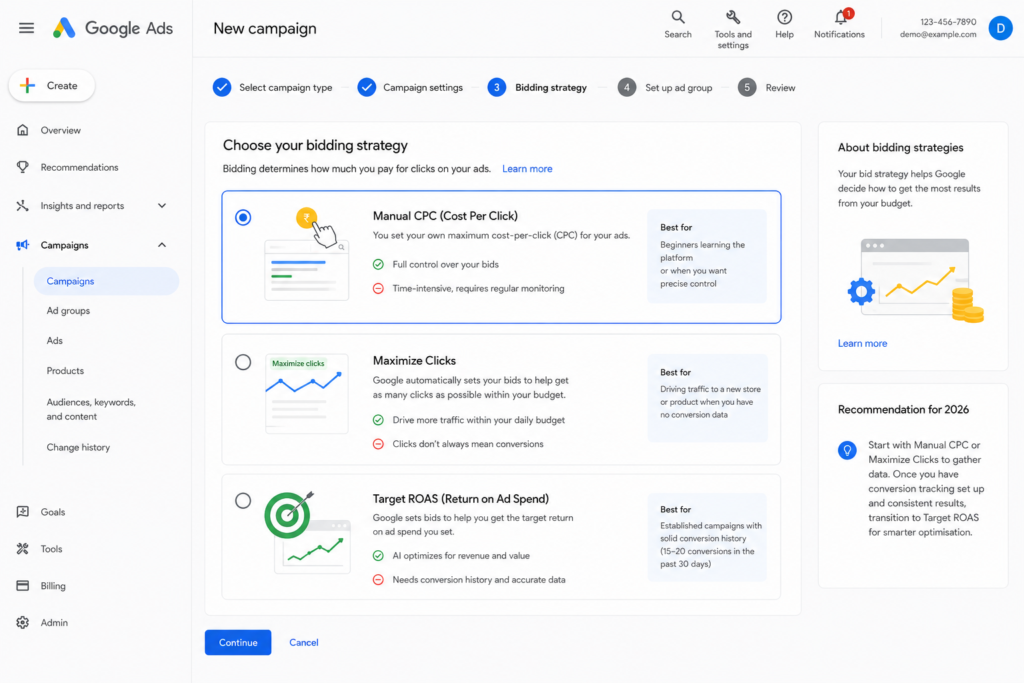
Bidding is where a lot of people get confused or make costly mistakes. Here are the three main options you’ll see in Standard Shopping:
Manual CPC (Cost Per Click)
- You set the exact amount you’re willing to pay per click
- Full control you decide the max bid for each product group
- Best for: beginners learning the platform, or when you want precise control
- Downside: time-intensive, requires regular monitoring and adjustment
Maximize Clicks
- Google automatically sets bids to get you as many clicks as possible within your daily budget
- Good for: driving traffic to a new store or product when you have no conversion data
- Downside: clicks don’t always mean conversions — Google optimises for volume, not quality
Target ROAS (Return On Ad Spent)
- You tell Google: “For every ₹1 I spend, I want ₹X back in revenue”
- Google’s AI adjusts bids in real-time to hit that target
- Best for: established campaigns with solid conversion history (at least 15–20 conversions in the past 30 days)
- Downside: if you set the ROAS target too high, the campaign may barely spend or show impressions
My recommendation for 2026: Start with Manual CPC or Maximize Clicks to gather data. Once you’ve got conversion tracking set up and you’re seeing consistent results, transition to Target ROAS for smarter optimisation.
Step 5 — Product Groups and Bidding Structure
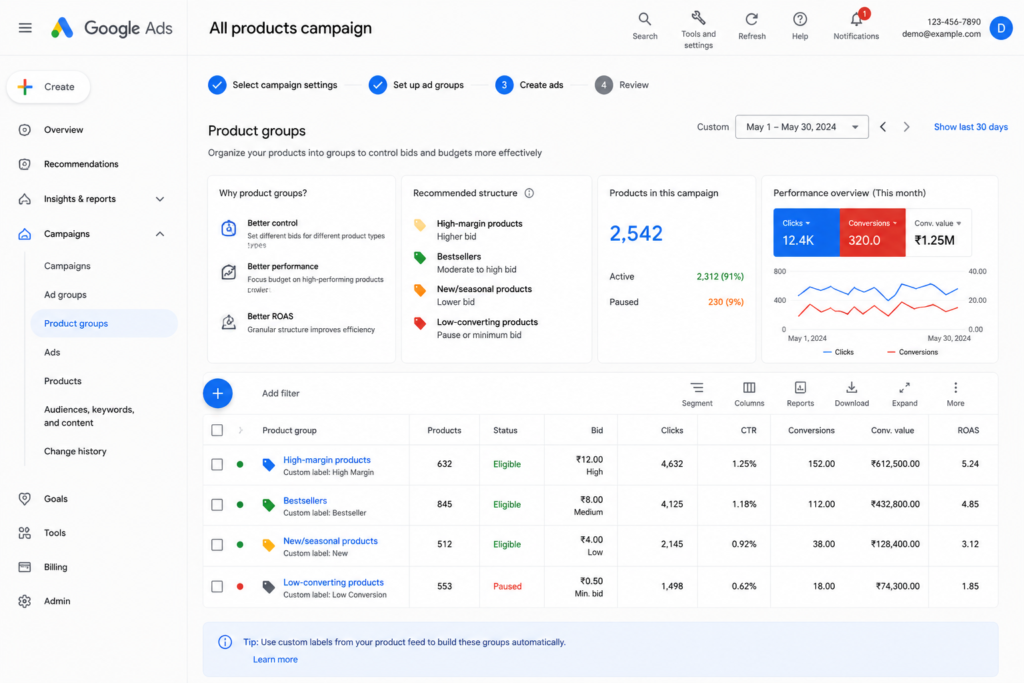
Inside your campaign, you’ll manage Product Groups these are how you segment your products for bidding purposes.
The same principle applies across Search campaigns too see this Google Search Ads Checklist 2026 for campaign optimisation ideas.
By default, Google creates one “All Products” group. But you should break this down so you can bid differently based on performance.
A solid structure looks like this:
- High-margin products → higher bid
- Bestsellers → moderate-to-high bid
- New/testing products → lower bid
- Low-converting products → pause or minimum bid
The more granular your product groups, the more control you have. And control = better ROAS.
How to Optimize Your Google Shopping Product Feed for More Sales
Your feed quality decides everything — impressions, clicks, and ROAS. Here’s what actually moves the needle.
1. Write Better Product Titles
Use this formula: Brand + Product Type + Key Feature + Color/Size
- ❌
Blue Shirt - ✅
Raymond Men's Formal Shirt Blue Slim Fit Size L
Put your best keywords in the first 70 characters — that’s what shows in the ad.
2. Use White Background Images
- Minimum 800x800px
- White/light background, no watermarks
- Product fills 75% of the frame
Clean images alone can improve CTR by 20–30%.
3. Add GTIN to Every Product
GTIN = barcode on your product. Products with GTINs get priority placement on Google and unlock automatic ratings/reviews.
Find it on your packaging → add it in Merchant Center under the gtin attribute.
4. Keep Price & Availability Updated
Feed price ≠ website price = instant disapproval.
- Shopify users → Google & YouTube app auto-syncs
- Refresh your feed every 24 hours minimum
- Always update feed before any sale
5. Use Custom Labels for Smart Bidding
Tag your products as bestseller, high-margin, or clearance — then bid differently on each group inside Google Ads.
Spend 30 minutes weekly on your feed. It compounds.
2026 Updates You Need to Know About
Before completing your Google Shopping Ads setup 2026, here are the latest updates and changes you should know about.
Google has made several significant changes to the Shopping Ads ecosystem in 2025–2026:
- Merchant Center Next is now the primary interface — the classic Merchant Center is being sunset for most accounts
- AI-powered product title and description suggestions — Google now actively suggests improvements to your product feed attributes using AI
- Automatically created assets in PMax — Google can now generate headlines, descriptions, and images for PMax campaigns if you don’t provide them (you can opt out)
- Vehicle ads expansion — Shopping-style ads for automotive inventory have expanded to more markets
- Free product listings continue to grow — organic Shopping listings (unpaid) are showing more prominently, so a well-optimised feed benefits you even beyond paid ads
- Stricter feed quality requirements — Google is enforcing product data quality more aggressively; disapproved products are increasing for accounts with incomplete GTIN, MPN, or brand data
Common Mistakes to Avoid
I’ve audited dozens of Shopping Ad accounts, and here’s what I see going wrong most often:
- No conversion tracking set up — you can’t optimise what you can’t measure
- Poor product titles — titles are the primary matching signal; include brand, product type, key attributes
- Missing GTINs (Global Trade Item Numbers) — Google heavily favours products with valid GTINs
- Single product group for all products — no structure = no control over bidding
- Running PMax with a tiny budget — the learning phase needs spend; don’t go PMax with under ₹500/day
- Ignoring search term reports — add negative keywords regularly to cut wasted spend
- Not using custom labels — you’re missing out on one of the most powerful feed management tools
FAQs — Google Shopping Ads in 2026
Q: What is the best way to do Google Shopping Ads setup in 2026?The best Google Shopping Ads setup 2026 approach starts with linking your Google Merchant Center, uploading an optimized product feed, then creating either a Standard Shopping or Performance Max campaign. In 2026, PMax campaigns are recommended for most eCommerce stores due to their AI-driven optimization across all Google channels.”
Q: Do I need a website to run Google Shopping Ads? Yes, absolutely. You need a functioning e-commerce website where customers can actually purchase your products. Google will verify your website domain in Merchant Center.
Q: How much does it cost to run Shopping Ads? There’s no minimum spend. You can start with as little as ₹200–₹500/day. However, to gather meaningful data and optimise, I’d recommend at least ₹1,000–₹2,000/day for a small catalogue and ₹5,000+ for larger stores.
Q: Can I run Shopping Ads without a physical product? No. Shopping Ads are specifically for physical products. For services or digital products, you’d use Search or Display campaigns instead.
Q: How long does it take for Shopping Ads to get approved? Product approval in Merchant Center typically takes 1–3 business days. Once products are approved and your campaign is live, ads can start showing within a few hours.
Q: What’s the difference between Shopping Ads and Search Ads? Search Ads are text-based and triggered by keywords you choose. Shopping Ads are image-based product ads triggered by Google matching your product feed data to relevant searches — no keyword list needed.
Q: Should I use Performance Max or Standard Shopping in 2026? For most small-to-mid businesses: start with Standard Shopping. Once you have 30+ monthly conversions and a clear picture of what’s working, test Performance Max alongside it.
Q: What is Target ROAS and how do I set it? Target ROAS tells Google what return you want on every rupee/dollar spent on ads. If you set a target of 400%, Google will try to generate ₹4 in revenue for every ₹1 spent. Set it based on your actual historical ROAS — setting it too high starves the campaign of impressions.
Q: My products keep getting disapproved in Merchant Center. What should I check? Common disapproval reasons include: missing or incorrect GTINs, price mismatch between the feed and the website, broken landing page URLs, missing required attributes (brand, condition, availability), and policy violations (like promoting prohibited products).
Final Thoughts — From My Desk to Your Dashboard
Google Shopping Ads are one of the most powerful tools available to e-commerce businesses right now. But like any tool, how well they work depends entirely on how you use them.
Set up your Merchant Center properly. Invest time in your product feed — titles, images, attributes, GTINs. Structure your campaigns with intention. Start simple, gather data, then layer on smarter bidding and automation.
The brands winning on Shopping in 2026 aren’t spending the most — they’re the ones with the cleanest feeds, the most relevant product data, and the smartest campaign structure.
That’s everything you need to nail your Google Shopping Ads setup in 2026 — clean feed, smart structure, right bid strategy.
If you have questions about your specific setup, or if you want me to audit your Shopping campaigns, you can reach out to me directly. I’m always happy to help fellow marketers and business owners get more out of their ad spend.
If you want me to personally audit your Shopping campaigns, you can find me on Fiverr with 1,300+ client reviews.
The Google Shopping Ads setup 2026 process is simpler than it looks once you follow these steps…
Last Updated: May 2026 | Tags: Google Shopping Ads, Google Merchant Center, Shopping Campaign Setup, Performance Max, Google Ads 2026, E-commerce Ads, ROAS, Standard Shopping Campaign
