

How to Set Up Google Search Console: Complete Guide (2026)

I keep seeing website owners obsess over Google Analytics while completely ignoring the one tool that actually tells them how Google sees their site. That tool is Google Search Console, and in this guide I am going to walk you through exactly what it is, how to set it up from scratch, and what to look at once you are inside.
What Is Google Search Console and Why Should You Care
This Google Search Console Setup Guide will help beginners understand how to connect their website with Google Search Console and why it matters for SEO. In this article, we’ll also explain Google Search Console and why should you care about using it for your website growth.
Most third-party SEO tools estimate your organic traffic. They pull data from various sources, run some calculations, and give you a number. It is a reasonable approximation, but it is still a guess.
Google Search Console is not a guess. It is Google’s own data, directly from the search engine, telling you exactly how many people saw your pages in search results, how many clicked, what keywords triggered your listings, and which pages Google has actually indexed.
- It shows real impressions and clicks from Google Search, not estimates
- It tells you which queries your pages are ranking for, even ones you did not target
- It flags indexing problems, manual penalties, and security issues before they become disasters
- It is free, always has been, and is maintained directly by Google
No paid tool can replicate what Search Console gives you because no paid tool has access to Google’s internal data. This is the starting point for any serious SEO work.
Before investing in ads, also read how Google Ads budgets actually work in 2026
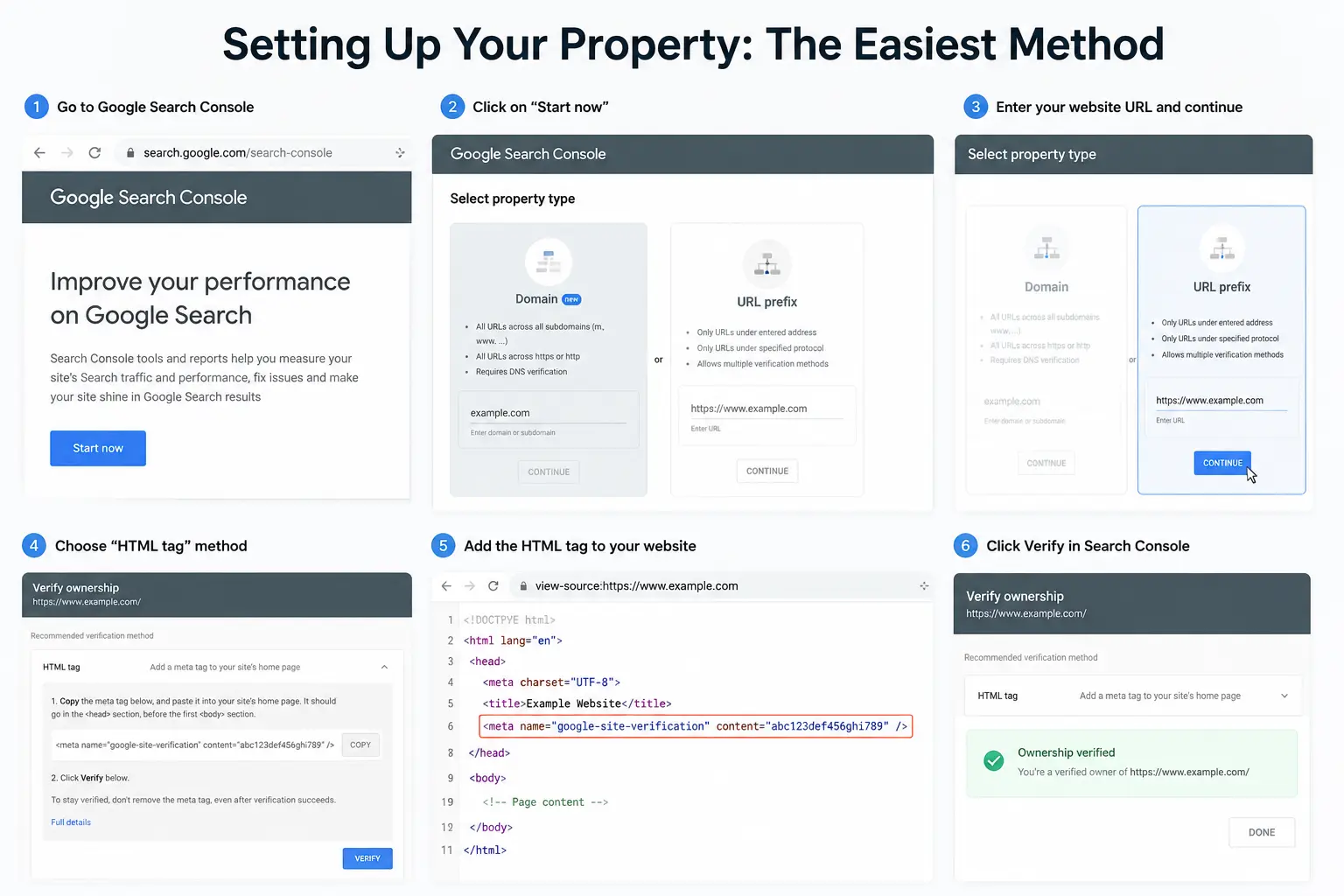
Setting Up Your Property: The Root Method
When you open Search Console for the first time, you will be asked to add a property. A property in Search Console is simply your website.
- Go to search.google.com/search-console and click “Start Now”
- When prompted, choose “URL prefix” and enter your full website URL including https://
- Copy the URL exactly as it appears in your browser’s address bar
At this point, Google needs to verify that you actually own the website before it shows you any data. This is the step where a lot of beginners get stuck.
There are several verification methods Google offers. I want to share the one I find most practical for WordPress users because it requires no coding knowledge and takes about three minutes.
Verifying Ownership with WP Code Plugin
The HTML tag verification method is the one I recommend for most website owners. Google gives you a small piece of code, you add it to your site’s header, and Google confirms ownership.
Here is how to do it on WordPress without touching any theme files:
- In your WordPress dashboard, go to Plugins and click “Add New”
- Search for “WP Code” and install the plugin by WPCode
- After activating it, look for “Code Snippets” in the left sidebar and click “Header and Footer”
- Copy the HTML verification tag from Google Search Console
- Paste it into the “Header” section in WP Code and save
Go back to Search Console and click Verify. If the tag is correctly in your header, it will confirm ownership immediately.
Why WP Code and not directly editing your theme? Because if you ever switch themes or update your theme, the code in your theme’s header.php will get wiped. WP Code stores it separately and it survives updates.
What You Will See Inside Search Console
Once your property is verified, the dashboard can feel overwhelming at first. Here is what actually matters and where to focus your attention.
Performance Report
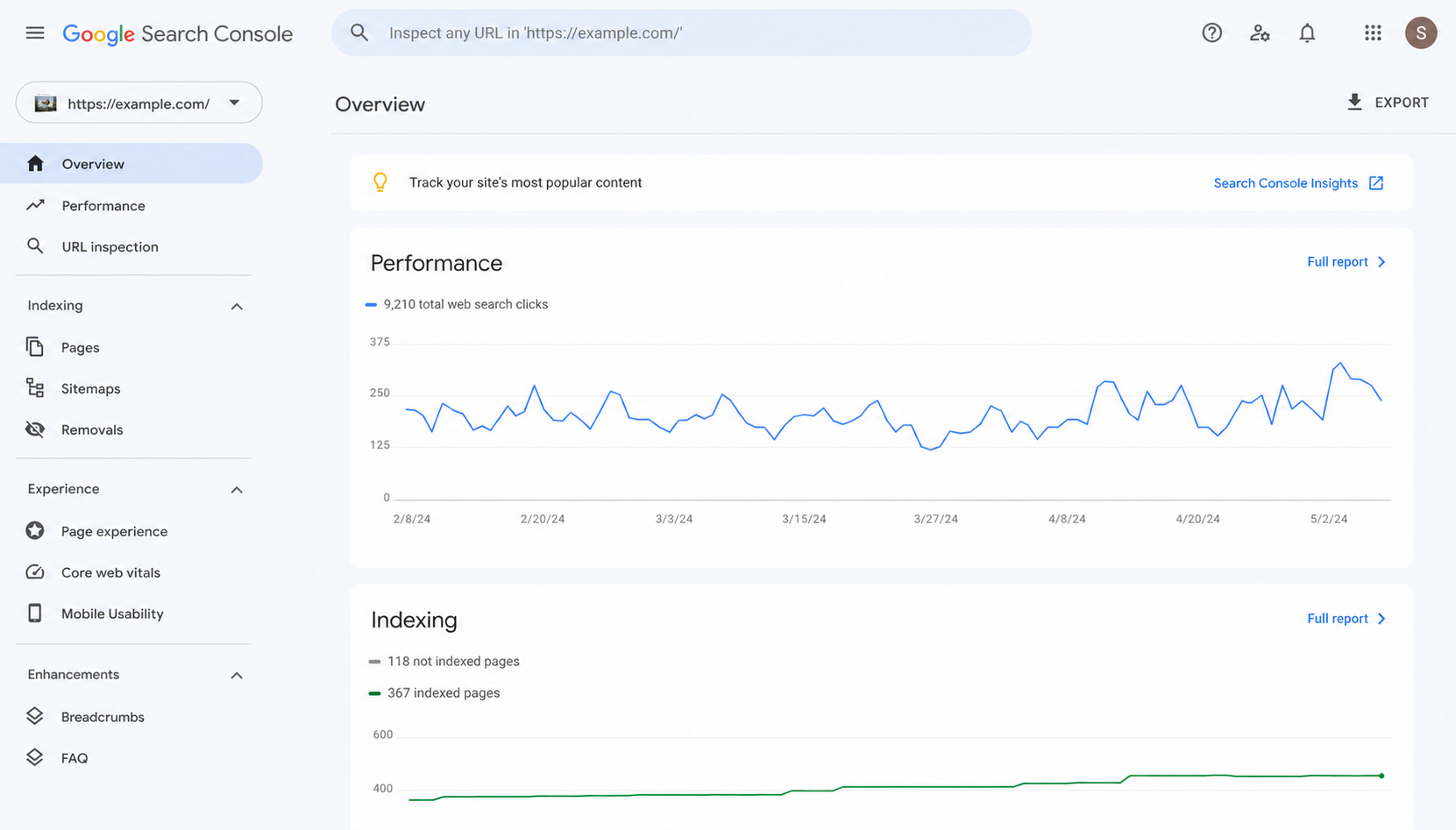
This is your traffic data. It shows total clicks, total impressions, average click-through rate, and average position. More importantly, it breaks this down by:
- Queries: the actual search terms people used to find your pages
- Pages: which URLs are getting the most impressions and clicks
- Countries: where your audience is coming from
- Devices: desktop vs mobile vs tablet split
This report is how you find keyword opportunities. Sometimes Google is showing your page for a query you never explicitly targeted, and it is getting 500 impressions with a 1% click-through rate. That tells you there is demand and you are not answering it well enough yet.
For improving search visibility and ad performance, also read our Google Search Ads Checklist 2026 guide.
Coverage and Indexing
This section tells you how many of your pages Google has indexed. It also flags errors, pages that are excluded, and pages with warnings.
Common issues you might see here:
- Pages blocked by robots.txt that should not be blocked
- Pages marked as “Discovered but not indexed” which means Google found them but has not processed them yet
- Redirect errors and 404 pages that are eating crawl budget
If you submitted a sitemap (which I covered in the previous video), you will see exactly how many URLs from that sitemap are indexed versus how many are not. That gap is worth investigating.
Core Web Vitals
This section shows how your pages perform on Google’s page experience metrics. Largest Contentful Paint, Cumulative Layout Shift, and Interaction to Next Paint. These are actual user experience signals that affect rankings, and Google pulls this data from real Chrome users visiting your site.
- Good: pages that pass all three thresholds
- Needs Improvement: pages close to the threshold
- Poor: pages that are hurting your rankings and your visitors
Manual Actions
If a Google reviewer has flagged your site for a policy violation, it shows up here. Most sites will never have a manual action. But if you do, this is the first place you will know about it, and it is also where you submit reconsideration requests after fixing the issue.
Security Issues
Hacked sites, malware injections, deceptive content. Google scans for this and flags it here. If you have ever had your site compromised, this is where you would see it, and where you confirm it is clean after recovery.
Links
Who is linking to your site, and how many external links your pages have. Also shows internal linking data, which is useful for understanding how your site’s authority flows between pages.
The Sitemap Connection
In my last video, I showed how to create and submit a sitemap. The sitemap goes directly into Search Console under the Sitemaps section. Once submitted, you can see how many URLs Google has found from it and how many are indexed.
This is the feedback loop: you tell Google about your pages through the sitemap, and Search Console tells you what Google has done with that information. Without Search Console, you are operating blind.
What Search Console Cannot Tell You
In fairness, there are some things this tool does not cover and it is worth knowing the boundaries.
- It only shows data from Google Search. Bing, DuckDuckGo, and other engines are not included.
- The data has some sampling and is not a perfect count of every click and impression
- It does not show competitor data, keyword difficulty, or backlink metrics in depth
- The historical data goes back 16 months, not indefinitely
For things like competitor research and keyword difficulty analysis, you still need a tool like Ahrefs or Semrush alongside Search Console. But Search Console is the ground truth for your own site’s Google performance, and nothing replaces it for that purpose.
A Note on E-E-A-T for This Kind of Content
I want to be transparent about something. Google’s quality guidelines talk about Experience, Expertise, Authoritativeness, and Trustworthiness as factors in how it evaluates content. When I write about SEO, I am drawing on what I have actually tested and set up on real websites, not repeating what I read somewhere else.
The verification method I shared using WP Code is the one I actually use. The sections I highlighted inside Search Console are the ones I check first when auditing a site. This is practical experience, not a summary of Google’s documentation.
If you are writing about topics in your own niche, the same principle applies. Write from what you know, be specific about what works and what does not, and tell people where you are uncertain. That is the kind of content that tends to perform well over time.
What to Do Right Now
If you have not set up Search Console yet, here is the short version:
- Go to search.google.com/search-console
- Add your website as a URL prefix property
- Install WP Code, paste the HTML verification tag into the header, save
- Click Verify in Search Console
- Submit your sitemap under the Sitemaps section
- Come back in 24-48 hours when data starts appearing
That is the setup done. After that, make it a habit to check the Performance report once a week and the Coverage report whenever you publish new content.
What I Would Add to Make This Guide More Complete
You asked me to flag anything that could improve this as a full resource. Here are some topics I would suggest adding in follow-up posts or an expanded version:
- How to read and act on the Queries report to find ranking improvement opportunities
- Using the URL Inspection tool to diagnose why a specific page is not indexed
- How to request re-indexing after updating old content
- Connecting Search Console with Google Analytics 4 for combined traffic and behavior data
- Understanding the difference between impressions and clicks, and what a low CTR actually means
- Setting up Search Console for a brand new domain that Google has not crawled yet
These could be separate posts linking back to this one, or sections added here as the guide grows. Building a complete resource around a topic like Search Console is also good for E-E-A-T because it signals topical depth, not just a surface-level overview.
Frequently Asked Questions About Google Search Console
Is Google Search Console free to use? Yes, completely free. Google has never charged for it and there is no premium version. You just need a Google account and a website.
How long does it take for data to show up after verification? Usually 24 to 48 hours for the first data to appear. For a brand new site that Google has not crawled yet, it can take a few days to a week before you see meaningful numbers.
Do I need Google Search Console if I already use Google Analytics? Yes, and they serve different purposes. Analytics tells you what visitors do on your site after they arrive. Search Console tells you how they found you in Google Search and what Google thinks of your pages. They complement each other rather than overlap.
Can I add Search Console to a site I do not own? You can be granted access as a user or owner by the actual site owner, but you cannot verify a property for a site you do not control. Verification requires either DNS access, server file access, or code placed on the site.
What does “Discovered but not indexed” mean in the Coverage report? It means Google found the URL, probably through your sitemap or an internal link, but has not crawled and indexed it yet. This is usually a crawl budget or page quality issue. It does not mean something is broken. For important pages, you can use the URL Inspection tool to request indexing manually.
How many websites can I add to one Search Console account? There is no hard limit. You can manage multiple properties under one Google account, which is useful if you run several websites or manage sites for clients.
Does Google Search Console affect my rankings directly? No. It is a reporting and diagnostic tool, not a ranking signal. But using it to fix indexing errors, improve Core Web Vitals, and find underperforming pages absolutely affects your rankings indirectly.
What is the difference between a click and an impression in Search Console? An impression is counted every time your page appeared in a Google Search result, whether or not anyone clicked it. A click is counted when someone actually visited your page from that result. Dividing clicks by impressions gives you your click-through rate.
Can I use Search Console for a site built on Wix, Shopify, or Squarespace? Yes. These platforms usually have a built-in option to add your verification tag without touching any code. Check the SEO settings section of your platform. Most of them walk you through it step by step.
